Cerevisor 3.9: AI agents that use websites and apps, and agent groups on a free canvas
Cerevisor 3.9 lets AI agents use websites and desktop apps one approved step at a time, adds a free canvas where one message reaches a whole group of agents, and gives every agent a chat you can watch, stop and copy.
By the Cerevisor team. Checked on 19 October 2026 against the source code of Cerevisor 3.9.0.
Cerevisor 3.9 lets AI agents use a website or a desktop app one careful step at a time, under the approval rules set for them. A new free canvas puts agents anywhere, gathers them into groups, and sends one message to the whole group. Each agent has its own chat to watch, stop, copy and clear, and the help chat can now point at the part of the screen being asked about.
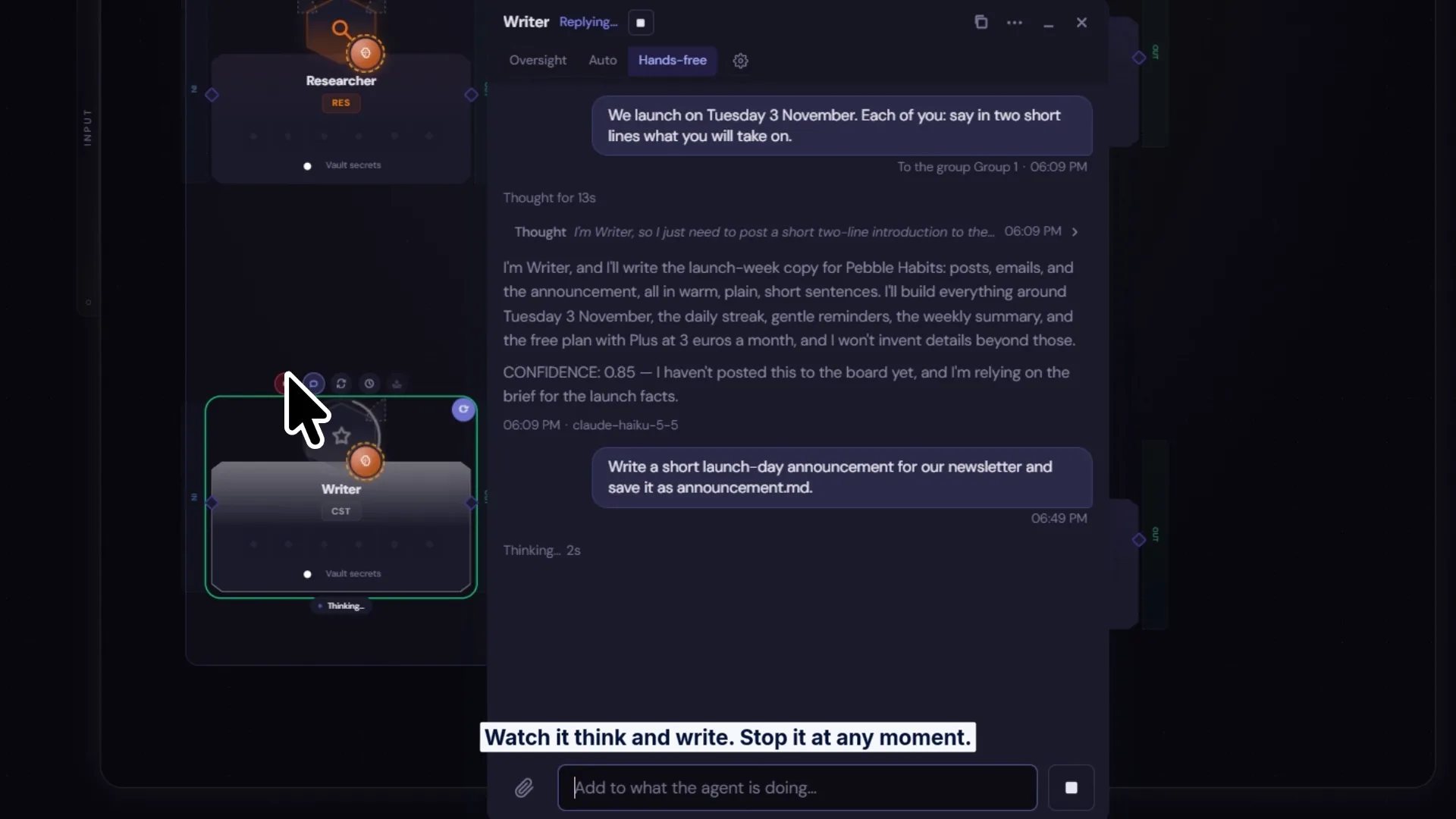
A launch is two weeks away. Four AI agents sit on a canvas, among them a researcher and a writer. One message goes to all of them at once: “We launch on Tuesday 3 November. Each of you: say in two short lines what you will take on.” A few seconds later each agent answers in its own chat, and each one can see what the others said.
That scene is from our showcase video for Cerevisor 3.9, and it is the simplest way to explain what changed. Cerevisor is a desktop app for people who do demanding work on a computer with AI. An agent here is an AI model given a task, some tools, and room to take several steps by itself. A workflow is a set of agents that work toward one result, and it lives on a canvas, a board where each agent shows up as a card. Everything stays on the computer: the app, the files and the record of every run.
Every change is listed in the Cerevisor 3.9.0 release notes. This post walks through what can now be done with it.
AI agents that use websites and apps, one approved step at a time
The headline of 3.9 is that an agent can now use a website or a desktop app on the computer. It opens a site in Cerevisor’s own browser, or a window of an app that has been allowed, reads the buttons, links and fields there, and then clicks and types one step at a time.
Every step passes the approval mode first. The approval mode is the setting that decides how much an agent may do without asking, and it has three levels: Oversight, Auto and Hands-free. Reading a page or following a link just happens. Sending, saving or downloading asks first in Oversight. Deleting, changing a sign-in or paying asks in both Oversight and Auto, and paying asks every time, even after “Always allow”.
Websites can be limited to a list of approved sites, and each workflow keeps its own browser, so a sign-in stays with that workflow and no other workflow sees it. For apps, the list of allowed programs is the only list, one agent works in an app at a time, and Ctrl+Alt+Esc stops it at once.
An agent that can click is only useful if it is easy to stop. In 3.9, the risky clicks ask first, payments always ask, and a single key combination ends an app task on the spot.
A free canvas for AI agent groups: one message reaches the whole group
Until now, agents on a Cerevisor canvas were arranged in waves, rows that run one after another. In 3.9 a workflow can switch to a free canvas: no waves, each agent placed anywhere, and each one talked to through its own chat.
Select two or more agents and press Group, or Ctrl+G. A group gets a name, a light border and its own message box. A message sent there goes into the chat of every agent in the group. Each agent is told who the others are, asked to say what it is taking on, and given the workflow’s team board, a shared page where the agents post notes and read each other’s.
Stopping works at every level. While an agent replies, the button above its card turns into a red Stop. A group has its own Stop, and the Workflow bar offers Stop all agents while anyone is replying. Switching back to waves is one click away.
One message to the group, and every agent answers in its own chat, knowing who else is in the room.
Each agent’s own chat: watch it, stop it, copy it, free it up
The third theme of the video is the agent chat itself. An agent’s thoughts and words stream into its chat as they happen, so the work can be watched while it is being done. A message can be added while the agent is still replying, and the Stop button ends the reply at any moment.
When the reply is useful, the whole conversation can be copied from the chat window’s title bar, and a link to a file in the reply opens the file the agent wrote. When the agent is done, one button on its card, Ready for new work, clears its chat and turns the card a calm blue, so it is easy to see at a glance which agents are free.
A help chat that shows where things are
Cerevisor has a built-in help chat for questions about the app. In 3.9 it can point. Turn on the small Point on screen switch under the question box, then ask “where is…” or “how do I…”. The rest of the app dims, a cursor glides to the right spot, and a short note appears beside it. It only points: it never clicks, types or runs anything. More on asking it questions is in the help assistant guide.
A folder per workflow, so last week’s file never gets read by mistake
A new workflow now keeps its files in a folder named after it, with separate places for results, for handovers (files one agent passes to the next), for files kept from run to run, and for earlier runs. When a new run starts, the previous run is filed away first. As the release notes put it:
"Cerevisor keeps the newest 5 runs; change it in Settings → Workflow → Earlier runs to keep."
If a run fails or is stopped, one button returns the results folder to how it was when that run started. Older workflows can be tidied into the new layout once, with a preview first and an undo afterwards.
Where Cerevisor 3.9 fits, and how to try it
Browsing and using apps are brand new in this release, so we treat both as early. Everything else in this release is about the same idea: more agents working at once, while staying easy to watch and easy to stop.
The quickest way to see it is to open a workflow, press Free canvas, group two agents and send them one message. The Cerevisor download page has the new version for Windows, macOS and Linux, and the 7-day trial includes everything with no card. The step-by-step guide to adding and setting up agents is the best place to start.
Sources
- Cerevisor 3.9.0 release notes - Cerevisor, 2026-10-19
Written by Kinan Hamwi, Founder of Cerevisor.