Cerevisor 1.9.0: Progressive Mode, Operator, and a Phone That Builds
· v1.9.0
Cerevisor 1.9.0 adds Progressive Mode, where you describe what you want in chat and it builds and runs it piece by piece, plus Operator, which quietly moves your work forward on a budget while you're away, and a phone app you can now build workflows from.
Two big ideas ship in 1.9.0: Progressive Mode, where you describe what you want in chat and Cerevisor builds and runs it piece by piece and you never press Run, and Operator, an agent that checks in on your workspace while you’re away and quietly moves your work forward, one small reviewed step at a time. Around them, the phone app grows from a remote control into a full control surface: you can now build and edit workflows, pick models, and watch Operator from your pocket. Everything still runs on your machine, with your keys and your data staying local.
1. Progressive Mode: describe it, watch it get built and run
Until now, building in chat and running were two separate steps: describe, build, press Run, wait. Progressive Mode collapses them into one conversation. With the switch on, every message you send does four things at once:
- It restates your goal back to you as it understands it.
- It builds the next piece, a small group of agents added to your workflow.
- It runs that piece, and only that piece. Everything built earlier keeps its results.
- It reports back in the chat: what it built, what came out, what it cost.
Then it checks whether your goal is met, and keeps going, a few steps per message, never a black box. If your next message asks it to change something already built, it detects that, tells you exactly what it’s about to redo and why, and re-runs only the affected piece. If a step fails, it gets one honest attempt at fixing its own mistake before it stops and asks you.
Because it runs on your own provider key, real spend is a real consideration, so two limits protect you: a per-step ceiling ($0.50 by default) and a per-conversation budget ($5.00 by default). Your running total is always visible at the top of the chat, and when a limit is hit you get an inline choice to raise it or stop there.
Progressive Mode is free. Mid-conversation it can offer to hand off to Endless mode (“keep going without me”), which keeps working unattended; running unattended is the paid direction, checking in with you never is.
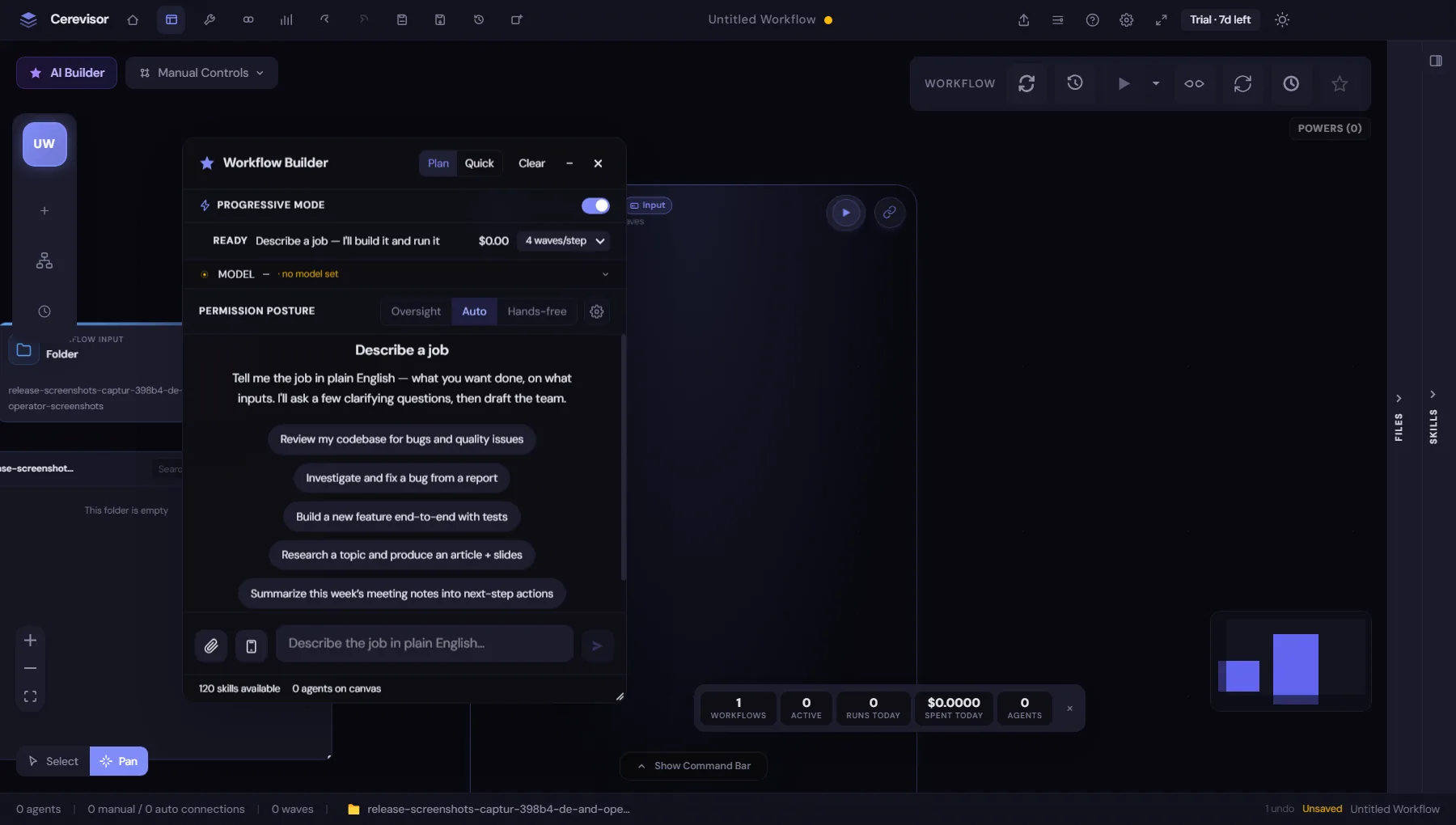
The chat builder with Progressive Mode on. The strip under the switch shows the running cost of the conversation and how many waves one step may build, so describe the job below and it starts building and running.
2. Operator: your workspace moves forward while you’re away
Operator is for the lunch break, the overnight stretch, the weekend. While Cerevisor is open, it checks in on your workspace on a schedule you choose, every 30 minutes by default, and does exactly one small, bounded thing:
- Moves an objective forward. If you’re already tracking something it can help with, it advances it by one step, the same kind of step you’d approve yourself.
- Starts tracking something new. If the evidence clearly points at something you’re working toward, it can start tracking it, stating in plain language what “done” would mean.
- Makes itself more useful. If there’s nothing to move, it drafts something for later: a skill, a Power, a memory entry, a workflow sketch, a workspace summary.
The trust rules are the feature:
- Everything it drafts waits for your review. Every draft lands in a review queue where you read it, see what it’s based on, and choose Accept or Discard. Nothing is applied automatically, ever.
- It spends real money, inside walls you set. A daily budget and a per-check limit, set before you can turn it on. When the daily budget is reached, paid checks stop until tomorrow and you get one notification.
- It knows when to quit. Three unsuccessful attempts in a row and it turns its own autonomy off and tells you, instead of spending on something that isn’t working.
- It only runs while the app is open. Closing Cerevisor pauses it completely. There is no hidden service running while your computer sleeps.
- A kill switch, on both screens. Stop it from the desktop panel or from your phone; either turns autonomy off immediately.
A plain-language journal records every check-in, what it did and what it cost, so you can build trust in what happened while you weren’t watching. Operator is available on trial and paid plans.
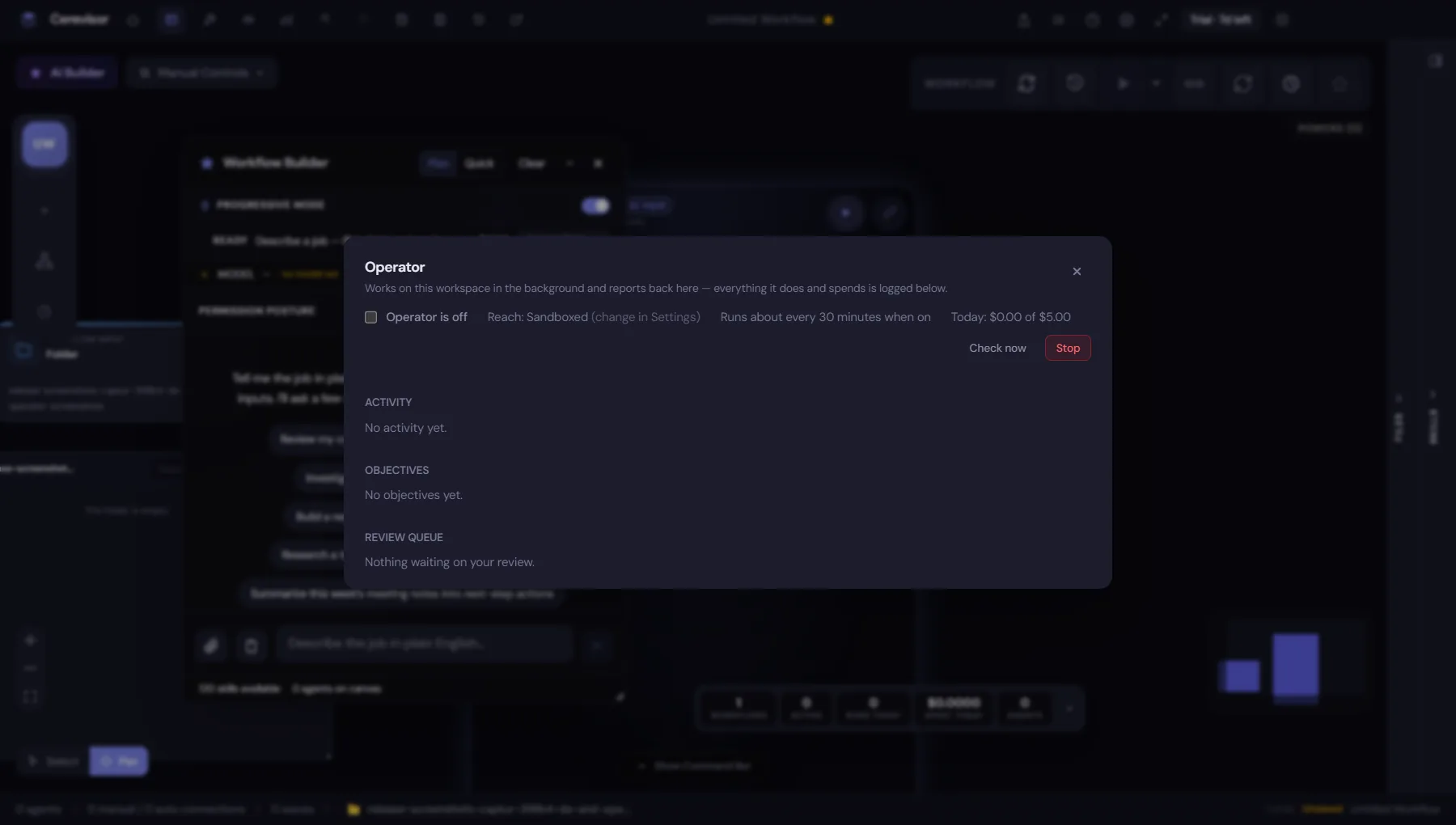
The Operator panel on a fresh workspace. The header line is the whole contract: whether it’s on, how far it can reach, how often it checks, and what it has spent today against your budget. Activity, objectives, and the review queue fill in as it works.
3. Your phone is now a control surface, not a viewer
The free Android companion app took a big step this release. Last version you could watch runs and answer approvals; now you can genuinely operate Cerevisor from the phone:
- Build and edit workflows. Add and edit agents, manage the connections between them, and change workflow settings, from the phone, applied by the desktop through the same rules as always.
- The builder conversation follows you. A chat-builder conversation started on the desktop now shows up live on the phone, and the other way around, so you can continue the same build from wherever you are.
- Pick providers and models. Choose which configured provider and model Cerevisor uses, from a guided picker on the phone. Changes flow to the desktop’s own settings, with no separate phone configuration to drift out of sync.
- Watch Operator. The journal feed, today’s spend, any question Operator is waiting on you to answer, and a Stop button, all in your pocket.
- Hand your phone to your agents. A small phone button in the desktop Chat Builder marks your next request as phone-facing, so a workflow can use phone-side abilities as part of a build.
The security model didn’t move: your computer stays authoritative, the phone can only make requests, and everything travels over your own Wi-Fi or your own VPN. No Cerevisor server sits in the path, because there is no such server.
4. Runs that pick up where they left off
A batch of quality-of-life work landed around running agents:
- Interrupted-run recovery. If the app closes mid-run, whether a crash, a shutdown, or a mistake, Cerevisor notices on the next launch and offers to pick up the run rather than losing the work.
- Keep talking to a finished agent. Send a message to an agent that has already completed and Cerevisor starts a fresh run for that agent alone, with no need to re-run the whole workflow to iterate on one step.
- Paste screenshots into chat. Images on your clipboard paste straight into the conversation as attachments.
The short version
| Feature | In one line |
|---|---|
| Progressive Mode | Describe what you want in chat; Cerevisor builds and runs it piece by piece, reporting cost as it goes. Free. |
| Operator | While you’re away, Cerevisor checks in on a schedule and moves work forward one reviewed, budgeted step at a time. |
| Phone control surface | Build workflows, pick models, follow the builder conversation, and watch Operator from the free Android app. |
| Run recovery & steering | Interrupted runs offer to resume; finished agents can be re-run from chat; screenshots paste into conversations. |
Cerevisor keeps your data on your own computer. No tracking, no phoning home. Auto-updates ship to everyone, on every plan.