Cerevisor 2.2.0: MCP servers that live online, three ways to add them, and per-agent control
· v2.2.0
Cerevisor 2.2.0 rebuilds MCP support: connect online servers like GitHub and Notion with a normal browser sign-in, add any server by picking, pasting, or typing, and choose exactly which agents get which servers. Plus one-click Antigravity install, Gemini 3.7 Flash as the new default, and an Operator that no longer repeats finished work.
MCP servers got a rebuild: they can now live online instead of only on your computer, adding one takes three easy paths instead of one form, and you can decide exactly which agents get which servers instead of an all-or-nothing switch. Alongside that, Antigravity became much easier to set up, Gemini picked up Google’s newest model, and Operator stopped repeating work it had already finished.
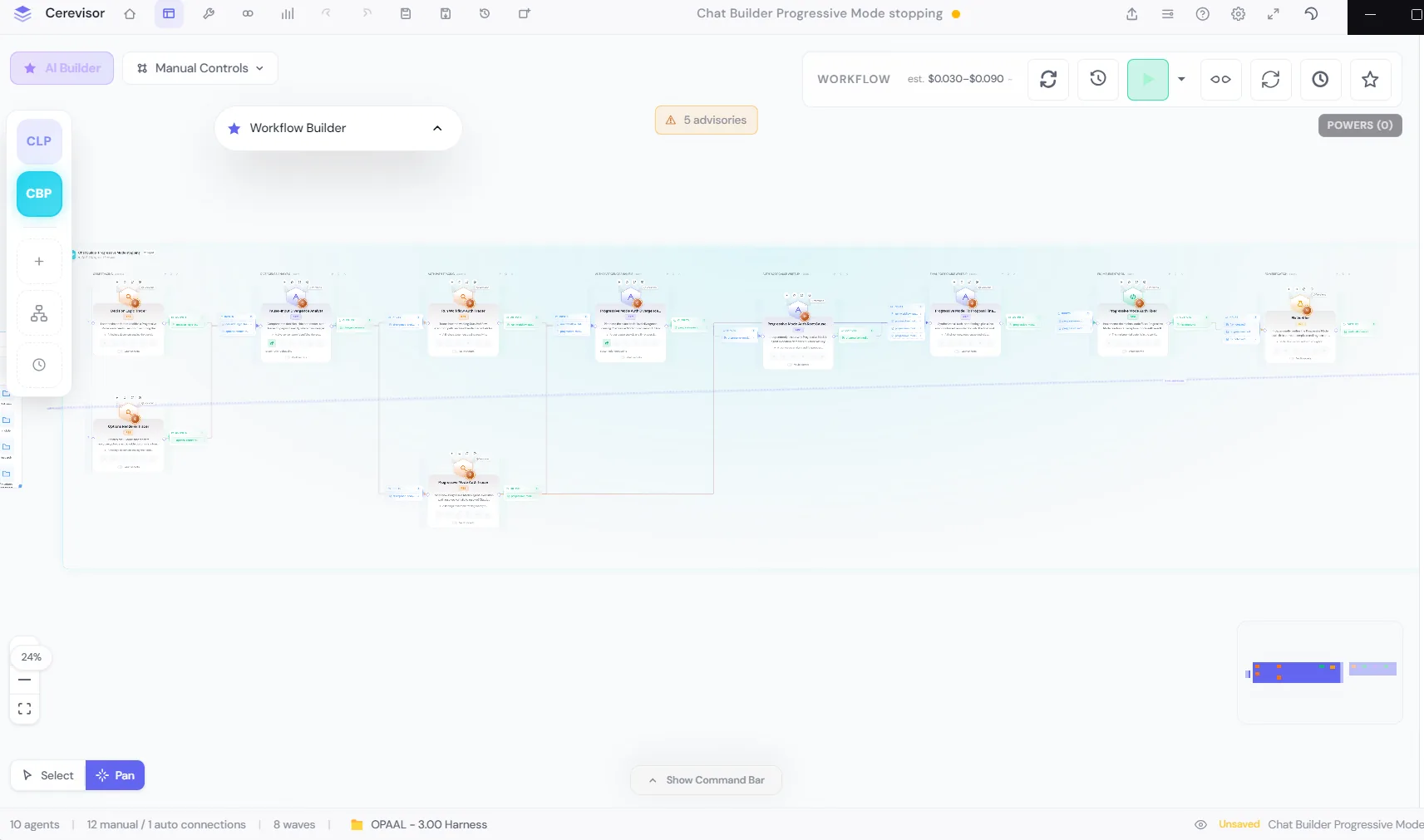
MCP servers can now connect online, not just run on your computer
Until now, connecting an outside tool to your agents meant a program running on your machine. Plenty of useful tools live online instead, behind your own account: GitHub, Linear, Notion, Sentry, Slack.
You can now add either kind. Servers that connect online walk you through a normal sign-in: click Sign in, your browser opens to that service’s own login page, you approve the connection, and control comes back to Cerevisor. Cerevisor never sees your password. It only receives permission to act on your behalf, for what you approved.
Adding a server is now three easy paths instead of one form
The old add-server screen was a blank form: name, command, arguments, environment variables. You had to already know the right values. Now you choose how you want to add one:
- Popular. A one-click list of eleven well-known servers (Filesystem, Memory, Web Fetch, Git, GitHub, Linear, Notion, Sentry, Slack, a real browser, and Brave Search). Pick one, fill in anything it needs, done.
- Paste. Already have setup instructions from somewhere else? Paste them in as-is, whether that is a plain web address, a command line, or the JSON block some tools hand you, and Cerevisor fills in the fields for you.
- Manual. The original form, for anything not covered above.
Every path lands on the same Test connection → Save step, so what you tested is exactly what gets saved. Removing a server now asks you to confirm first.
Choose which agents get which servers
Every MCP server used to be available to every agent in a workflow, all the time. You can now set a workflow-wide default of All, Selected servers, or None, and let individual agents override it with their own list. Useful when one agent in a workflow needs access to your GitHub account and the rest of the workflow has no business touching it. The pre-run screen shows a one-line summary of which servers a run will actually use before you start it.
A new permission switch (Settings → Permissions → MCP tools) can turn off MCP access for a whole workflow at once, for workflows you want to keep fully self-contained. It’s on by default, so nothing changes for workflows you already have.
Antigravity: one-click install, real model names, recoverable sign-in
Three improvements for Antigravity users, all in the Provider Hub:
- One-click install. If the Antigravity tool isn’t on your computer yet, its lane now offers to install it for you instead of sending you to a terminal.
- The model pickers show Antigravity’s real, current models. They used to show a built-in guess; now they ask the tool itself, so what you pick is what actually exists, including models released after your version of Cerevisor.
- A stuck sign-in can be retried. If a sign-in attempt got wedged partway, the Hub used to leave you with no way forward. It now notices and lets you start over cleanly.
Gemini’s default is now 3.7 Flash
Google released Gemini 3.7 Flash in August, and it’s now the model Gemini agents use when you haven’t picked one. It’s at half price through the end of 2026, and Cerevisor’s cost tracking already knows its rates. Agents where you chose a specific model are untouched.
Operator no longer repeats finished work
Two fixes from watching Operator run in the wild:
- It remembers which workflows it already ran. Operator could occasionally re-run a workflow it had just completed, because its own notes didn’t reliably record which one it was. Every run is now recorded by name, Operator sees that history before deciding what to do next, and it’s told plainly not to repeat a finished run, unless the goal genuinely calls for running again, like a recurring digest.
- Accepted work stays visible. Accepting an item from Operator’s review queue used to make it vanish from the panel entirely. The Produced section now keeps your recent accepted items in view, marked as accepted, so you can always see what Operator has delivered.
Also, under the hood
- Servers that only read outside content for safety reasons (quarantined-reader agents) never get MCP servers, no matter how they’re assigned. That protection was already true and stays true.
- When a workflow that has read outside content wants to call an online MCP server you haven’t marked as trusted, Cerevisor asks you first, the same rule that already protects web access.
- A server that fails to connect (bad command, missing dependency, expired sign-in) now shows the reason right on its row instead of just going quiet.
- Editing a server and saving reconnects it with the new settings automatically. Testing a server now probes a separate throwaway connection, so a test can never disturb a server your agents are actively using.
- Closing the message composer restores your keyboard position reliably in every case, finishing the fix that shipped in 2.1.1.
The short version
| Feature | In one line |
|---|---|
| Online MCP servers | Connect tools that live online (GitHub, Linear, Notion, …) with a normal browser sign-in; Cerevisor never sees your password. |
| Three ways to add a server | Pick from a Popular list, paste setup instructions as-is, or use the manual form; every path ends in Test connection → Save. |
| Per-agent server assignment | Set a workflow-wide default (All / Selected / None) and let individual agents override it; the pre-run screen shows what a run will actually use. |
| MCP permission switch | One switch turns MCP off for a whole workflow; on by default, so existing workflows are unchanged. |
| Antigravity ease-of-use | One-click install, live model lists straight from the tool, and a stuck sign-in you can retry. |
| Gemini 3.7 Flash | The new default Gemini model, at Google’s half-price introductory rates through 2026. |
| Operator doesn’t repeat itself | Finished workflow runs are remembered by name and not re-run without a reason. |
| Produced history | Accepted Operator items stay visible in the panel instead of vanishing on accept. |
Upgrading
Cerevisor updates itself. If you would rather not wait, Settings → Updates → Check for updates.
Nothing in this release changes your existing servers, workflows, or settings. Servers you already added keep working exactly as before; the new sign-in and assignment options are there when you want them.