Cerevisor 4.1: groups of AI agents that work together under a lead
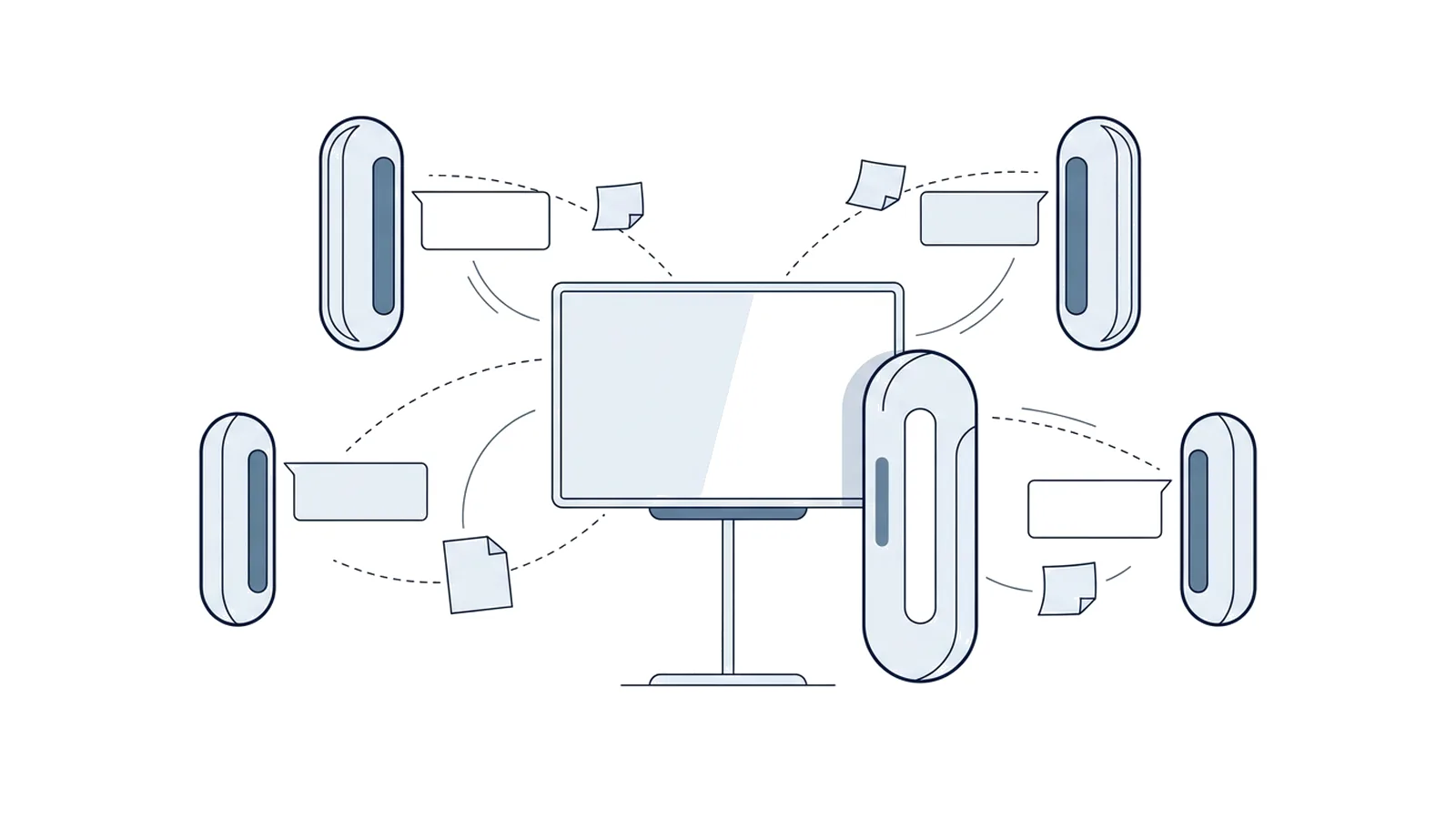
Cerevisor 4.1 lets a group of AI agents introduce themselves on a shared message board and work under a lead that splits the work and replies with one answer. It also shares an agent or a workflow with everything it needs, and the app now comes in eight languages.
By the Cerevisor team. Checked on 10 November 2026 against the release notes and the source code of Cerevisor 4.1.0.
Cerevisor 4.1 lets a group of AI agents work as a team. One switch has each agent introduce itself on a shared message board, and another adds a lead that splits the work, hands each agent its part by name and replies with one answer. The release also shares an agent or a whole workflow with the tools and skills it needs, and the app now comes in eight languages.
Picture four agents on one canvas: a researcher, a writer, a fact checker and a designer. Until now, a message to all four meant four separate replies to read and stitch together. In Cerevisor 4.1 the same message can go to one lead, which decides who does what, collects the parts and comes back with a single answer.
Some words first. Cerevisor is a desktop app for people who do demanding work on a computer with AI. An agent is an AI program that does one job, such as researching, writing or checking. A workflow is a set of agents working toward one result, laid out on a canvas where each agent is a card. The free canvas is a way of laying out that canvas where cards sit anywhere and can be put into named groups, instead of running in a fixed order.
Every change is listed in the Cerevisor 4.1.0 release notes. This post covers the three that change the most: groups, sharing and languages.
Groups of AI agents that introduce themselves on the message board
The message board is a short, shared list of notes that agents leave for each other, and for the person running them, while the work is going on. In 4.1, a group on the free canvas gets two new switches that put the board to work.
The first is Introductions. With it on, each agent that a group message reaches is first asked to introduce itself to the others on the board and to work with them on the request. The agents run at the same time, each in its own chat, and each sees what the others post as they post it.
The second is Lead. It adds a lead card to the group: an agent whose job is to coordinate the others. From then on, a message to the group goes to the lead alone. The lead splits the work, hands each agent its part by name in a note on the board, checks what comes back and replies with one answer, saying which agent did what.
The lead turns a group from several voices into one accountable answer. The person asking reads one reply, and can still open each agent's chat to see how the parts were made.
How the lead hands out work and files
A few details make this work in practice.
- Files go out once. Files and pictures can be added to a group message with the paperclip, a paste or a drop. With a lead, each agent gets the files once, with its first assignment, and sees them in its own chat.
- Every agent gets a distinct name. The lead tells agents apart by name, so names have to be unique. New, pasted and duplicated cards are now numbered, for example Developer Agent 2. Turning Lead on numbers any agents in the group that share a name, and one Undo puts the old names back.
- A note to a shared name is refused. If two agents have the same name, a note to that name is not sent at all, and the agent that wrote it is told to ask for different names. Before 4.1 it went to the first card with that name.
- The group box shows who is there. Each agent has a small face in the group box, the lead with a small crown, and a green dot marks an agent that is replying.
The message board is part of the Power plan and the free trial. On a plan without it, the lead cannot reach the others, so it answers the request itself and says so. The free canvas guide walks through groups, Introductions and Lead step by step.
Share an AI workflow with its tools, skills and secrets
The second big change is sharing. An agent card’s right-click menu now has Share agent, and a whole workflow can be shared too. The shared file can carry the connected tools, fully set up, and the skills. A connected tool is an outside service an agent can use, such as a database or a calendar. A skill is a saved set of instructions an agent can follow.
It can also carry secrets, meaning passwords and access keys, but only if the sender chooses. As the release notes put it:
"Secrets are off by default. Turned on, they are sealed with a code of at least 8 characters, which you pass on separately."
Suggest a code makes one, and case, spaces and hyphens in the code do not matter.
On the receiving side, an import dialog lists what came with the file. Without the code, Import without the secrets still works. Secrets go into the Vault, Cerevisor’s store for secret values, for that workflow, and an entry already there is never touched: a clashing name is stored under a new name instead. Anything that still needs the receiver’s own value is listed under Still needed. A skill with a name the receiver already has is kept, never overwritten. If any step of an import fails, everything already written is undone.
Installing the extras needs a paid plan (the trial, Pro or Power). Import without them brings the bare agent or workflow on any plan, and sending is free on every plan.
Locking a shared workflow against changes made by mistake
A shared copy can be locked against editing with a code. It shows Locked in the footer, with Unlock to edit for the session and Remove lock for good. A locked workflow can still be run, rearranged and given its own provider, model and Vault secrets.
We want to be plain about what this lock is. It guards against changes made by mistake. It is not a security wall: the file is plain text.
Cerevisor in eight languages
The app, Cerevisor’s messages and the phone companion now come in English, Russian, French, Spanish (Spain), Portuguese (Portugal), Simplified Chinese, German and Italian. The language is chosen in Settings > Language and applies after Restart now, which saves the open work first. On first start, Cerevisor uses the computer’s language when it is one of these, and English otherwise.
Some things stay in English: product names, text only an AI model reads, what is saved into files, copied logs and the help pages.
The translations were made by a model, and no native speaker has read them yet. The permission prompts and the confirmations of actions that cannot be undone were checked line by line.
That is the honest state of it. A permission prompt is the question Cerevisor asks before an agent does something that needs approval, and those prompts, along with every confirmation for an action that cannot be undone, got the line-by-line check. The rest of the wording may read a little stiff in places, and a native speaker’s review is still to come.
Other changes in Cerevisor 4.1
- An Operator per world. The Operator is Cerevisor’s background assistant that checks on work and moves it forward. Each world, meaning a saved file of workflows, now has its own.
- Stop always stops. Stop now ends any agent within about 25 seconds, on every provider.
Try agent groups in Cerevisor 4.1
The quickest way to see a lead at work is to put three agents in a group on the free canvas, turn on Lead, and send one request with a file attached. Cerevisor 4.1 is on the download page for Windows, macOS and Linux, and existing Windows and Linux installations get it through the built-in updater. The full list of changes, including every known limit, is in the 4.1.0 release notes.
Sources
- Cerevisor 4.1.0: Eight languages, sharing with everything it needs, an Operator per world - Cerevisor, 2026-11-09
Written by Kinan Hamwi, Founder of Cerevisor.